Which metrics matter for OTTO advertising?

By Keanu Dutado · Last updated: 31 October 2026
In short
In OTTO advertising, the number that matters most is ACoS, your ad spend as a share of ad revenue, meaning revenue from purchases after a click on your ad. OTTO shows it in the partner portal as „KUR (ACoS)“. Only your target ACoS tells you whether it's good, because that's the highest share at which a sale still leaves you enough profit. Measure it per item or per campaign, because by default OTTO also counts purchases of other items from your brand. How often OTTO shows your ad, how often people click, what a click costs and how often a purchase follows then tell you why an ACoS is too high.
OTTO shows you more than a dozen ad metrics, spread across several reports. By default it counts the revenue of your whole brand after a click on an ad, so ACoS often looks better than the advertising for the individual item really is. If you don't know which number to decide on, you keep overpriced targetings running, meaning the items and keywords you bid on, or you switch off campaigns that actually make money.
Which metrics OTTO shows for your ads
For Sponsored Product Ads, the advertising on otto.de, OTTO shows these metrics in the partner portal. The names appear exactly as OTTO writes them.
| Metric on OTTO | What it tells you |
|---|---|
| „Impressionen“ | How often OTTO showed your ad |
| „Klicks“ | How often someone clicked the ad |
| „CTR“ | Clicks divided by impressions, as a percentage |
| „CPC“ | What a click cost on average |
| „Max. CPC“ | Your highest bid that won an auction in the last calendar week. It can differ from the bid you set. |
| „Ausgaben“ | Your ad spend |
| „Umsatz“ | Ad revenue, meaning what customers ordered after a click |
| „Verkäufe“ | How many units were sold after a click |
| „Abgeschickte Warenkörbe“ | How many orders were placed after a click |
| „CVR“ | Submitted carts divided by clicks, OTTO's conversion rate |
| „CPO“ | Ad spend per submitted cart, so what one order costs you in advertising |
| „ROAS“ | Revenue divided by spend |
| „KUR (ACoS)“ | Spend divided by revenue |
The metrics work like a chain. OTTO shows the ad, some customers click, every click costs money, and some clicks lead to a purchase. At the end sits ACoS, which puts costs and revenue in relation to each other.
On OTTO, ACoS is called „KUR (ACoS)“
If you're coming from Amazon, you'll look for ACoS on OTTO. OTTO calls it „KUR (ACoS)“, short for Kosten-Umsatz-Relation (cost-to-revenue ratio). The math is the same as on Amazon, ad spend divided by ad revenue. 60 € of ad spend for 200 € of ad revenue is a 30% ACoS. With ACoS, lower is better.
ROAS is the same calculation the other way round, ad revenue divided by ad spend. OTTO shows it as a percentage. A ROAS of 400% on OTTO means one euro of ad spend brought in 4 € of ad revenue. That equals a 25% ACoS. With ROAS, higher is better.
What OTTO counts as ad revenue
OTTO counts the submitted cart including VAT as revenue, so the price the buyer pays. OTTO's description doesn't mention returns or cancellations. What counts is what was ordered, not what stays paid in the end.
When a customer clicks your ad, OTTO credits it with the purchases of the next 14 days. A purchase counts for the day of the click. A day's ad revenue can therefore keep growing for two weeks while ad spend stays the same. So the ACoS of the last 14 days isn't final yet and can still fall.
You choose which purchases belong to a click in a campaign's detail report, in the „Conversion-Basis“ (conversion basis) field. Step 3 of the portal walkthrough further down shows where to find it. OTTO has four levels. On every level, only a purchase after a click on an ad counts, up to 14 days later. A purchase after someone merely saw the ad counts on no level.
| Level on OTTO | What counts after a click on the ad |
|---|---|
| Item | The customer buys exactly the item they clicked. |
| Campaign | They buy an item from the same campaign. |
| Assortment | They buy an item of the same brand and the same assortment, which OTTO also calls „gleiche Marke und Produktgruppe“ (same brand and product group). This is OTTO's own classification, not the product groups you create in MargenOptimierer. |
| Brand | They buy any item of the same brand from you, whatever the assortment. |
By default OTTO is set to Brand, according to OTTO to show the full impact of the campaign. The „Dashboard“ and the „Kampagnen-Report“ (campaign report) also show revenue at Brand level. OTTO doesn't say so, but comparing the numbers shows it. Brand includes every purchase that counts at Item and Assortment level, so ad revenue is largest there, ACoS lowest and ROAS highest. The same campaign therefore looks better at Brand level than at Item level. The other levels don't build on each other. A campaign's revenue can be smaller at Assortment level than at Campaign level.
Which number to decide on at OTTO
In practice, you're best off judging your advertising per item or per campaign. If you want to compare your numbers with Amazon, take the campaign, because it matches what you know from Amazon. The item is more precise still. Brand level flatters your advertising because it includes purchases of other items from your brand.
ACoS alone doesn't tell you whether the advertising pays off. For that you need your target ACoS. It depends on your margin, and ads for an item with a lot of margin may cost more. What is a good ACoS on OTTO, and how do I calculate it? shows how to work it out. If ACoS is above target, you can lower the bid. If it's well below, you can raise it. When should I lower or raise bids on OTTO? explains when each one fits. A higher bid can bring you more clicks and more revenue while ACoS still has room before it reaches the target.
When an ACoS is above target, there's one of three reasons. A click costs too much, which the CPC shows. Too few clicks lead to a purchase, which the conversion rate shows. Or a purchase brings little revenue because the item is cheap. Impressions and CTR don't change ACoS, because it only uses costs and revenue per click. They tell you how often your ad is seen and clicked, and so how much revenue your advertising can bring at all.
Before you judge an item, it should have had at least 50 € of ad spend, according to OTTO's rule of thumb. Before that, its numbers are too thin for a first conclusion. In practice, experienced sellers judge each targeting on its own, meaning each advertised item in an automatic campaign and each keyword in a manual campaign. Often a few targetings spoil the average of a whole campaign.
What OTTO doesn't show you
OTTO doesn't calculate some numbers for you.
- TACoS, your ad spend as a share of your total revenue, including revenue without advertising. OTTO hasn't defined a TACoS. You'll find total revenue under „Analysen“ (Analytics) → „Controlling“ in the „Umsatz“ (Revenue) tile, and you have to do the division yourself. That revenue is counted by shipping date, ad revenue by order date.
- What an item earns after ad spend, OTTO commission and returns.
- Break-even ACoS, the ACoS above which you lose money on a sale.
- Ad revenue after returns. OTTO's revenue is the ordered cart.
How to find the metrics in OTTO's partner portal today
Your ad numbers are in OTTO Partner Connect, the partner portal for sellers.
- Open „Marketing“ → „Marketing Dashboard“, choose the period at the top and the „Sponsored Product Ads“ tab. By default, four tiles show „Umsatz“, „Klicks“, „KUR (ACoS)“ and „Ausgaben“ (Spend). Use the arrow on a tile to choose another metric.
- Under „Marketing“ → „Sponsored Product Ads“ you'll find the Dashboard, „Kampagnen-Report“, „Artikel-Report“ (item report), „Verkäufe-Report“ (sales report) and „Prognose-Report“ (forecast report).
- Under „Marketing“ → „Sponsored Product Ads“, the „Dashboard“ tab lists your campaigns. The „SPA Kampagnendetailreport“ (SPA campaign detail report) icon in a campaign's row opens its detail report. You can also open it from the „Artikel-Report“ tab, in the „Artikelperformance-Detailübersicht“ (item performance detail view) table, via the icon in the „Detailreport“ column. The detail report has the tabs „Gesamt Report“ (overall report), „Keyword Report“, „Artikel Report“ and „Sales Report“. Switch the „Conversion-Basis“ there from „1. Marke“ (1. Brand) to „4. Artikel“ (4. Item).
- Choose the period and download the Keyword Report, the Artikel Report and the Sales Report as CSV files. In the partner portal you can currently choose the whole „Kampagnenzeitraum“ (campaign period). The Helpdesk still gives a maximum of 30 days for the Keyword Report.
- The targetings themselves aren't in any report. In the „Dashboard“ tab, click the „Bearbeiten“ (Edit) icon in the campaign's row and then „Weiter“ (Next). In an automatic campaign, the items and their bids are in the step „2 Produktauswahl“ (2 Product selection). In a manual campaign, the keywords with match type and bid are in the step „3 Keywords & Gebote festlegen“ (3 Set keywords and bids). Download them with „CSV-Download“ and leave the campaign with „Abbrechen“ (Cancel) without changing anything.
- Merge all the files in Excel, targeting by targeting. Divide spend by revenue in each row, write your target ACoS next to it and mark what's above. Leave out the last 14 days, because their ad revenue can still grow.
You repeat this for every campaign and every period, and with many items and keywords it quickly becomes a big spreadsheet. You also work out TACoS separately using total revenue from „Analysen“ → „Controlling“. In practice, many sellers skip this work and set their bids without knowing the numbers per targeting. What software is there for OTTO sellers? lists the tools that take this work off your hands.
One garden chair on OTTO, two ACoS figures
Say you advertise the acacia chair at 50 € in an automatic campaign. Your garden furniture has a target ACoS of 25%. All numbers are an example and come from days more than 14 days back.
| Metric | Value |
|---|---|
| Impressions | 20,000 |
| Clicks | 200 |
| CTR (200 ÷ 20,000) | 1% |
| Average CPC | 0.30 € |
| Ad spend (200 × 0.30 €) | 60 € |
| Sales | 4 chairs in 4 orders |
| Conversion rate (4 ÷ 200) | 2% |
| CPO (60 € ÷ 4 orders) | 15 € |
| Ad revenue, Item (4 × 50 €) | 200 € |
| ACoS, Item (60 € ÷ 200 €) | 30% |
| ROAS, Item, as OTTO shows it (200 € ÷ 60 €) | 333% |
| Ad revenue, Brand (plus 1 oak table at 100 €) | 300 € |
| ACoS, Brand (60 € ÷ 300 €) | 20% |
| ROAS, Brand, as OTTO shows it (300 € ÷ 60 €) | 500% |
By default OTTO shows you Brand level, so a 20% ACoS, and the advertising looks better than your target. The chair itself comes to 30%. At 25%, 200 € of ad revenue may carry at most 50 € of ad spend, so the targeting is 10 € over target.
The chain shows why. One chair sells per 50 clicks, and at 0.30 € per click each chair costs 15 € in advertising. At 25% it should be 12.50 €. At the same conversion rate, a click may therefore cost at most 0.25 € on average. You can lower the bid and look at the targeting again after two weeks. When should I lower or raise bids on OTTO? shows how to go about it.
How to see your OTTO metrics in MargenOptimierer
MargenOptimierer fetches your campaigns and ad numbers from OTTO every night. On the Werbung (Advertising) page, impressions, clicks, ad spend, CTR, CPC, ad revenue, ACoS, ROAS and conversion rate sit in one row, for every campaign, item, targeting and search term. The spreadsheet you'd otherwise build in Excel is ready, for any period you choose. Your numbers always end yesterday. If you choose the last 30 days, the most recent 14 of them aren't final yet and their ad revenue can still grow.
Next to ACoS you see your target ACoS, and below it whether it applies to your account, a product group or the campaign. If ACoS is above target, it shows in red. In the Targeting tab, each targeting sits in one row with its bid and numbers, and you change the bid right where you see the performance.
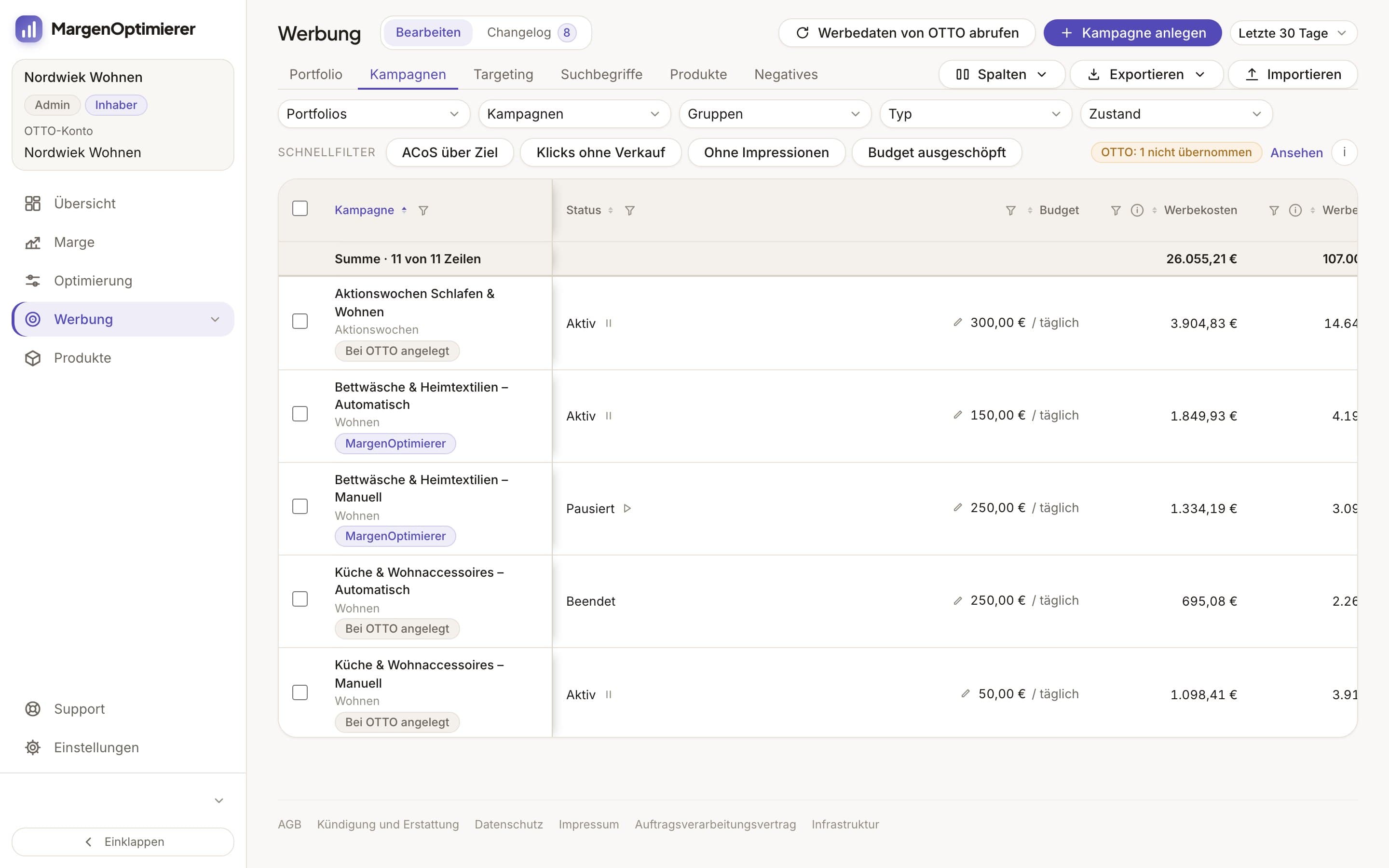
OTTO's brand view and the item view sit side by side. In the Kampagnen (Campaigns) and Produkte (Products) tabs, the „ACoS“ column shows the same number as OTTO's console, calculated with the ad revenue of your whole brand. Next to it is „ACoS (beworbener Artikel)“ (ACoS of the advertised item), which counts only purchases of the advertised item. In the Targeting and Suchbegriffe (Search terms) tabs, OTTO provides only this narrower number, so „ACoS (beworbener Artikel)“ applies there. You no longer have to work out the difference between the two yourself.
TACoS, which OTTO doesn't show you, is on the Übersicht (Overview) page below ACoS. The Marge (Margin) page shows what an item earns after ad spend, OTTO commission and returns.
MargenOptimierer costs from 49 € net per month. You can test the first 14 days for free, no credit card needed.
Frequently asked questions
Does OTTO show an ACoS?
Yes. OTTO calls it „KUR (ACoS)“, Kosten-Umsatz-Relation (cost-to-revenue ratio). You'll find it in the „Marketing Dashboard“ and in the reports under „Sponsored Product Ads“. By default it's calculated with the revenue of your whole brand.
Why does OTTO show ROAS as a percentage?
OTTO writes ROAS as a percentage. A ROAS of 400% means 1 € of ad spend brought in 4 € of ad revenue. On Amazon the same figure reads 4.
Is there a TACoS on OTTO?
No, OTTO hasn't defined a TACoS and doesn't show one. You work it out yourself, your ad spend divided by your total revenue in the same period. You'll find total revenue under „Analysen“ → „Controlling“ in the „Umsatz“ tile. OTTO counts it by shipping date and ad revenue by order date, so over a short period the two don't match exactly.
Why do my OTTO ad numbers change afterwards?
OTTO credits a click with the purchases of the following 14 days, on the day of the click. The ad revenue of the last 14 days therefore keeps growing while ad spend stays the same. Only judge a period once it's more than 14 days back.
Keanu Dutado
Keanu Dutado sells on OTTO and other marketplaces with his own company and runs the ads himself. He has several years of e-commerce experience and was an Amazon Ads Manager at Snocksulting / Remazing Nova. He founded MargenOptimierer.
Last updated and sources
Last updated: 31 October 2026
- OTTO Advertising: Sponsored Product Ads, as of 28 October 2026
- Sponsored Product Ads, Reporting (Partner Helpdesk, login required), as of 13 July 2026
- Sponsored Product Ads, Allgemeine Informationen (Partner Helpdesk, login required), as of 7 May 2026
- Sponsored Product Ads, Kosten und Abrechnung (Partner Helpdesk, login required), as of 13 August 2026
- Sponsored Product Ads, Buchung und Erstellung von Kampagnen (Partner Helpdesk, login required), as of 25 June 2026
- Controlling Analyse (Partner Helpdesk, login required), as of 13 July 2026
- Nachfrage- und Umsatz-Analysen (Partner Helpdesk, login required), as of 19 August 2026
- Analyse und Optimierung von SPA-Kampagnen (Partner Helpdesk, login required), as of 28 October 2026
Next
- How do Sponsored Product Ads work on OTTO?
- What is a good ACoS on OTTO, and how do I calculate it?
- How do I analyse search terms in OTTO's Keyword Report?